Start a ChatLite conversation
Published
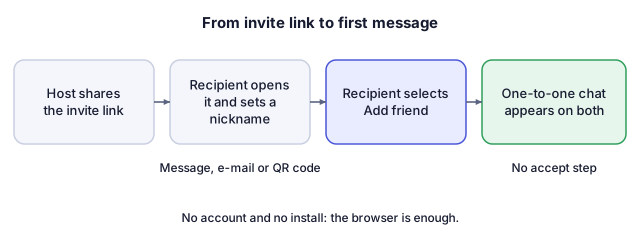
ChatLite has no rooms to create and no sign-up. One person shares an invite link, the other opens it and adds that person as a friend, and a one-to-one conversation appears on both devices. This guide follows both sides of that flow.
What you will do
You will start ChatLite on two browsers or devices, connect them with an invite link and send a first message. The person who shares the link is called the host here, and the person who opens it is the recipient. You can test the whole flow alone with two different browsers or two browser profiles, because each one keeps its own profile.
Before you start
- A current web browser on each device. ChatLite runs in the browser, so there is nothing to install.
- An internet connection on both devices.
- A way to send the link to the other person, such as a message app, e-mail or a QR code shown on screen.
Steps
Host: create and send the invite
- Open chatlite.net/en/ and select Start ChatLite. ChatLite shows Starting the app... and then the profile screen.
- In Username, enter a nickname of 2 to 20 characters. Status Message and a photo (Upload Image) are optional. The photo stays in this browser.
- Select Get Started. ChatLite stores your user ID and profile in this browser. The Conversations list is empty and says No conversations yet.
- Select Add Friend (or Share Invite Link). The dialog is titled Invite a friend.
- Choose how to hand over the link: Send invite link (the browser's share sheet, where the browser offers one), Copy link, or Show QR so the other person can scan it with the phone camera. Copy my ID copies only your ID, not a link.
- Send the link exactly as it is. It is your current ChatLite address with your anonymous user ID in an add parameter, and it may carry further parameters, so do not shorten or edit it.
Recipient: open the link and add the host
- Open the link. ChatLite shows the profile screen with the note Invite link detected. Your friend ID will be filled in after you start.
- Enter a Username and select Get Started.
- The Invite a friend dialog opens with the host's ID already filled in, and ChatLite shows Friend ID filled from invite link. Select Add friend.
- ChatLite shows Friend added!, puts the conversation in your list and tries to open a direct connection to the host.
Both: send the first message
- On the host's device, the new conversation appears automatically with the notice New 1:1 chat added. The current version has no accept or decline step for an added friend.
- Open the conversation, type in Type a message... and select Send.
What the screens look like
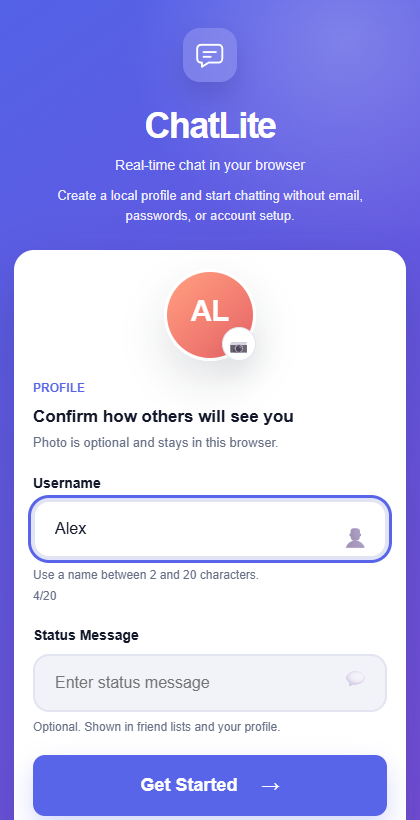
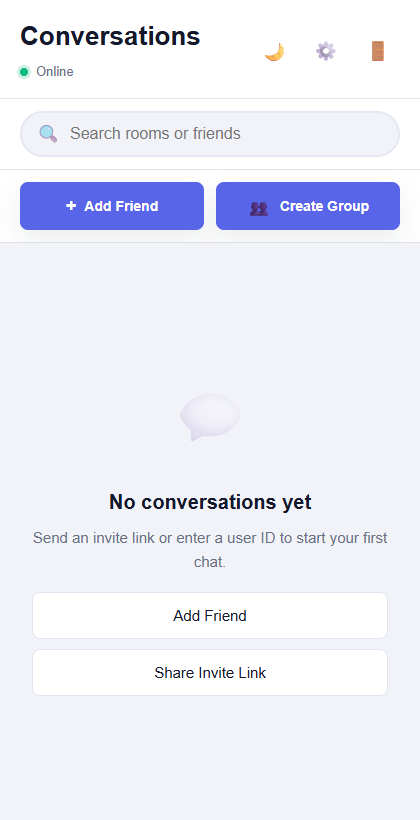
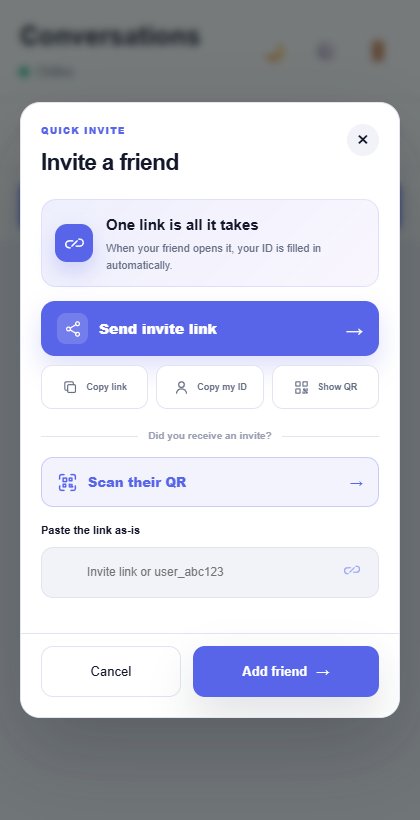
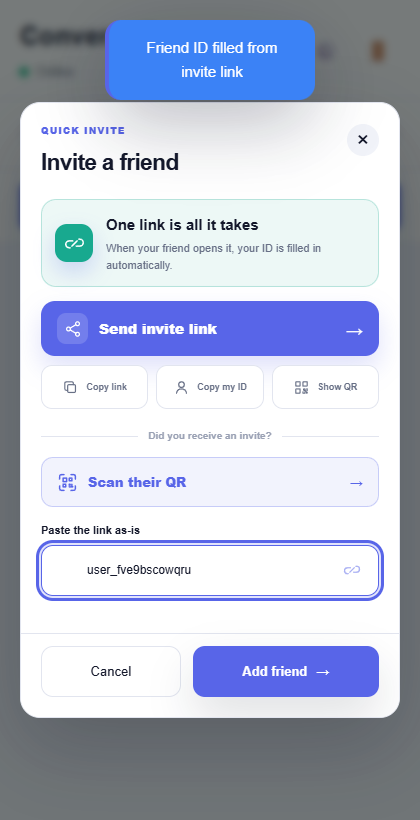
Real screenshots of the ChatLite web app in a narrow browser window, taken on a test server with sample names.
The idea in a diagram
How to tell it worked
- The recipient sees Friend added! and the conversation in the list.
- The host's list gets the new conversation. If the host was offline, it arrives when they next connect.
- The other person's name shows Online while they are connected.
- The message appears on the other device. The only reliable proof is on that device, so ask the other person or wait for a reply.
- A P2P Connected notice means the two browsers opened a direct connection. Messages also work without it, because ChatLite can pass them through its server.
If something goes wrong
The link opens ChatLite but no friend ID is filled in
The link was probably shortened or edited, or a message app removed the part after the question mark. Copy it again. You can also paste the full link, or just the user ID, into the field under Add Friend: the field says Paste the link as-is.
Failed to add friend
Check your connection and try Add friend again.
Already friends
A conversation with that ID already exists on this device. Look for it in the Conversations list.
Login to create invite link
ChatLite has no profile on this device yet. Finish Get Started first.
Cannot add yourself
The ID in the field is your own. The link has to come from the other person.
The message does not show up on the other device
If the other person is offline, ChatLite queues it (see the limits below). If both are online, check that both devices have a working connection and that the other side has not left the conversation.
What ChatLite does not do
- An invite link identifies a browser profile, not a verified person. Anyone who opens it can add that ID, so send it only to people you want to connect with.
- Nicknames are chosen by users and are not checked.
- If the recipient is offline, undelivered items wait in server memory (up to 50 per user, cleared when the server restarts) or, for devices linked to an account, in the database for up to 14 days.
- A direct connection is not guaranteed. On some networks ChatLite falls back to its server for messages, and calls may not connect (see the call guide).
Privacy and data
Starting stores your user ID and profile in this browser. Chat history is also stored in this browser, and some messages may pass through ChatLite's server for delivery. ChatLite does not currently provide application-level end-to-end encryption. The full picture is on the data handling page and in the guide on chat history and local data.
Reviewed against ChatLite's current behavior on .