Messages work but calls do not connect
Published
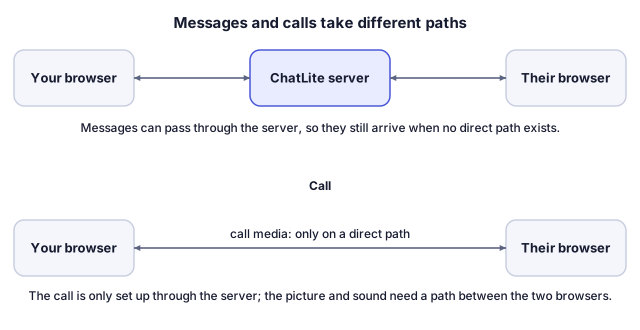
A message and a call take different paths. Messages can pass through ChatLite's server, so they keep working on networks where a call cannot find a route between the two browsers. This guide explains the difference and what you can test.
What you will do
You will check the requirements for a call, rule out permission and call-state problems, and test whether the network between the two devices is the cause.
Before you start
- Calls exist only in one-to-one chats. In a group, ChatLite shows Calls only available in 1:1 chats.
- The other person has to be connected. Their name shows Online while they are.
- Both devices need camera and microphone access as described in the camera and microphone guide.
Signaling and media take different paths
When you select Audio Call or Video Call, ChatLite sends the call request through its server. The sound and picture do not travel that way. They go over a separate WebRTC connection between the two browsers, which tries a direct route first and uses public STUN servers to learn each side's network address. If no direct route exists, a relay would have to carry the media. ChatLite does not run its own relay at the moment, and the public relay entry it still lists is kept for compatibility without any availability guarantee. So a call can fail on some networks while messages, which can go through the server, keep arriving.
Steps
- Confirm you are in a one-to-one chat and that the other person shows Online.
- Start with Audio Call. If it connects, only the camera or the video path is the problem.
- Ask the other person whether the call screen with Accept and Decline appeared. If it did not, ask them to reload ChatLite and make sure they are not already in a call (Another call in progress).
- Move one device to a different network, for example a phone hotspot instead of Wi-Fi, and call again. If that works, the first network is blocking the direct route.
- Turn off a VPN, proxy or privacy extension that changes WebRTC behavior, or try another browser. Office and school networks often restrict direct peer-to-peer traffic.
- Reload ChatLite on both devices and try again, and wait for the connecting message to finish.
The idea in a diagram
How to tell it worked
- The call screen leaves the Connecting call... state, and you can hear the other person (or see them, in a video call).
- Ending the call with End shows Call ended together with a reason.
If something goes wrong
The call rings, then never connects or ends by itself
That points to the network route. Repeat the network and VPN steps. ChatLite shows a reason in Call ended, but it does not show network diagnostics.
The call connects but there is no sound or picture
Check the microphone and camera permissions on both sides, and whether someone used Mute or Turn Off Camera.
Call already in progress. or Another call in progress
Finish the current call with End first.
Cannot accept call.
ChatLite could not set up the media on the receiving device. Check the camera and microphone guide on that device.
Messages fail as well, with Offline
That is a connection problem to ChatLite itself, not a call problem. Check the internet connection.
What ChatLite does not do
- A failed call does not mean ChatLite is down, that your account has a problem, or that your messages were lost.
- ChatLite does not guarantee a relay path for calls, so some network combinations cannot be connected from your side.
- Calls are one-to-one only. There are no group calls.
- ChatLite publishes no uptime or call success figures, and this guide does not either.
Privacy and data
Call media is not sent through ChatLite's server. If a third-party relay is ever used, it forwards encrypted media but can see connection details such as IP addresses and timing. Messages are different: they may pass through ChatLite's server and, without application-level end-to-end encryption, the server can technically read relayed content.
Reviewed against ChatLite's current behavior on .