Screen sharing in a call
Published
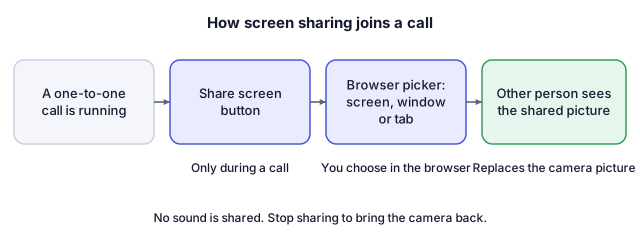
Screen sharing in ChatLite is part of a one-to-one call. It swaps your camera picture for the screen you pick, and it ends when you stop it or the call ends.
What you will do
You will start a call, share a tab, a window or a whole screen, confirm that the other person sees it, and stop sharing.
Before you start
- A connected one-to-one call. Without a call ChatLite shows Screen sharing only available during call.
- A browser that can capture the screen. If it cannot, ChatLite shows Screen sharing not supported in this browser.
- The call itself has to work first. If calls do not connect, start with the call guide.
Steps
- Start an Audio Call or Video Call and wait until the other person has joined and you can hear or see them.
- In the chat toolbar select Screen Share. If the toolbar is collapsed, open it with the three-dot button first.
- The browser shows its own picker. Choose a tab, a window or the whole screen, whatever your browser and system offer, and confirm.
- ChatLite shows Screen sharing started. The button changes to Stop sharing, and the other person now sees your screen instead of your camera.
- To stop, select Stop sharing, or use the stop-sharing control that the browser itself shows. ChatLite shows Screen sharing ended and brings your camera back if it was on.
The idea in a diagram
How to tell it worked
- You see Screen sharing started and the button reads Stop sharing.
- The other person tells you they see your screen. Your own preview does not prove what they receive, so ask them.
If something goes wrong
Screen sharing only available during call.
Start a call and wait for it to connect, then try again.
Screen sharing not supported in this browser.
The browser does not offer screen capture to web pages. Use another browser or a computer. Support on phones and tablets has not been verified for ChatLite.
Cannot start screen sharing
The picker was closed or the choice was denied. Try again and confirm a source. Some systems also need a separate screen-recording permission for the browser.
The other person sees nothing or only your camera
Check that the call is really connected and ask them to look at the main video area. If the call itself is shaky, see the guide on calls that do not connect.
Sharing stopped by itself
It stops when you use the browser's stop control, close the shared window or tab, or end the call.
What ChatLite does not do
- Screen sharing works only inside a one-to-one call, not in a chat without a call and not in groups.
- ChatLite shares the picture only. It does not capture tab or system audio.
- One shared source at a time, with no pause button. To change what you share, stop and start again.
- ChatLite has not been verified on specific phones, tablets or browser versions, so none are listed as supported.
Privacy and data
Everything visible in the shared tab, window or screen is sent to the other person, including notifications that pop up there. Close private windows first. Screen content travels like call media, directly between the browsers or through a relay when the network requires one, encrypted in transit, and ChatLite does not record it.
Reviewed against ChatLite's current behavior on .