Camera and microphone troubleshooting
Published
ChatLite asks your browser for the camera or microphone only when a feature needs it. When the browser refuses, ChatLite tells you that it could not start, but it cannot tell you why. This guide helps you find the cause yourself.
What you will do
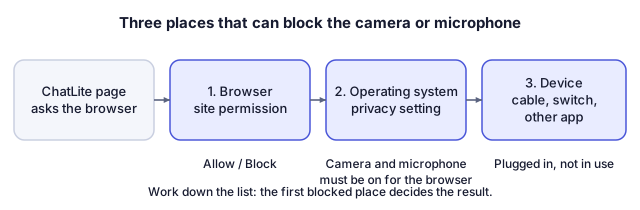
You will find out whether the problem comes from the browser permission, the operating system, the device itself or another program that is using it.
Before you start
These ChatLite features use a device, and nothing else does:
- Audio Call: the microphone.
- Video Call: the microphone and the camera. ChatLite asks for the front camera and a picture of up to 1280 by 720 at up to 30 frames per second.
- Voice message (press and hold the button): the microphone.
- Scan their QR (inside Add Friend): the camera, preferring the rear one.
ChatLite has no device picker of its own. It uses whatever the browser offers by default. Browsers only hand out cameras and microphones to secure pages (HTTPS), which chatlite.net is.
Steps
- Start with Audio Call, which needs only the microphone. If audio works and Video Call does not, the camera is the problem.
- When the browser asks for permission, choose Allow. If you dismissed or blocked the question earlier, open the site information icon next to the address, find the camera and microphone entries for chatlite.net, set them to Allow and reload the page. The exact menu names differ between browsers.
- Check the operating system's own privacy settings. Most systems have a separate switch that decides whether browsers may use the camera and microphone at all.
- Check which device is the default. ChatLite follows the browser's default, so unplug and re-plug external devices and select the right camera and microphone in the browser or system settings.
- Close other programs and tabs that may hold the device, such as other video-call apps or camera apps. Some systems let only one program use a camera at a time.
- Reload ChatLite and try again. Your profile and conversations are kept in the browser and survive a reload.
- Try the same device on another website or app. If it fails there too, the cause is outside ChatLite.
The idea in a diagram
How to tell it worked
- The call starts and the call screen shows Connecting call... or Connecting video call... instead of an error.
- In a video call your own picture appears, and the other person confirms they can see and hear you.
- A voice message records instead of showing Microphone permission required.
If something goes wrong
Cannot start call. or Cannot start video call.
ChatLite could not get the device or could not set the call up. It does not say which. Work through the steps above, then see the guide on calls that do not connect if the devices are fine.
Microphone permission required
A voice message needs the microphone and the browser has blocked it for this site. Allow it in the site settings and try again.
The QR scanner says Camera unavailable. Check permission or choose a photo.
Fix the camera permission, or use Read QR from photo, or paste the link into the field.
The other person cannot hear you
Check that you did not select Mute during the call, and that the microphone you expect is the browser's default.
The other person sees no picture
Check whether the camera was turned off with Turn Off Camera, and whether another program took the camera.
What ChatLite does not do
- ChatLite cannot tell which program holds a device, cannot list your devices and cannot test your hardware.
- Echo cancellation, noise suppression and automatic gain are requested for calls and there is no setting to turn them off.
- ChatLite has not published a verified list of supported phones, operating systems or browsers, so this guide does not make one up.
Privacy and data
ChatLite asks for a device when you start or accept a call, hold the voice button or open the QR scanner. Call audio and video travel between the two browsers (or through a relay when the network requires one) and are encrypted in transit. ChatLite does not record calls. A voice message is recorded in your browser and sent like any other message.
Reviewed against ChatLite's current behavior on .