File transfer troubleshooting
Published
ChatLite tries to send a file straight to the other browser. Only when that fails does it fall back to its server, and the server path has a much smaller limit. Knowing which path was used explains most failures.
What you will do
You will send a file, understand which path it took, and confirm that the other person really has it.
Before you start
- An open conversation with the person. Use the File button in the chat toolbar.
- A file of at most 100 MB. Larger files are refused with File too large (max 100MB).
- For best results the other person is online at the same time.
The two paths
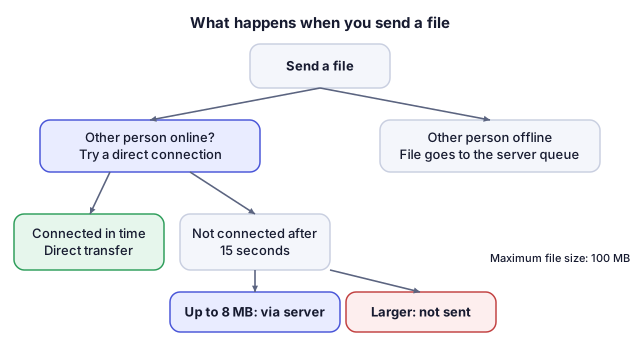
- Direct: if the other person is online, ChatLite waits up to 15 seconds for a direct browser-to-browser connection and sends the file in pieces over it. This path accepts files up to 100 MB.
- Through the server: if the direct path is not available or fails, ChatLite sends the whole file through its server, but only if it is at most 8 MB. If the other person is offline, the file is queued for later delivery.
Steps
- Open the conversation and select File, then choose the file.
- Wait for the progress indicator in the conversation.
- When it finishes, ChatLite shows File transfer complete!. If only some members of a group received it, it shows Sent to some recipients only.
- Ask the other person to check the conversation. The file appears there and can be opened or downloaded from the message, and a direct transfer also shows File received! on their device.
The idea in a diagram
How to tell it worked
- The recipient sees the file in the conversation and can open it.
- The sender's success message only means ChatLite finished sending. On the server path it means the file was handed to the server, not that the recipient has it yet.
If something goes wrong
File too large (max 100MB)
Reduce the file, for example by compressing it, or split it. ChatLite does not send files above 100 MB at all.
File transfer failed: followed by a message about the relay fallback
The direct connection could not be made and the file is larger than 8 MB, so the server path refused it. The message says the recipient has to be online for a direct transfer. Ask them to open ChatLite, check both networks, and send again.
The transfer stops when the other person closes the tab or leaves
A direct transfer cannot continue without the receiving browser. ChatLite does not resume a partial transfer. Wait until they are back and send the file again from the start.
The sender saw a success message but nothing arrived
On the server path the success only covers the hand-over. If the recipient was offline, the file waits in the queue (see below). Ask them to open ChatLite and check the conversation.
Sent to some recipients only.
In a group, at least one member could not be reached. Send the file again later or to that member directly.
No file data to download or File not found
The copy that was stored in the browser is no longer available, for example because site data was cleared. Ask the sender to send it again.
What ChatLite does not do
- Limits: 100 MB for a direct transfer, 8 MB through the server.
- No resumable transfers and no delivery receipt for files. Only the recipient can confirm.
- The server queue for offline recipients holds up to 50 items per user in memory and is cleared when the server restarts. For devices linked to an account, queued items are kept in the database for up to 14 days.
- Files are stored in the browser with the conversation, so very large files use browser storage on both devices. A browser or private window that limits storage can make saving fail.
Privacy and data
A direct transfer goes over an encrypted WebRTC data channel between the browsers. A file sent through the server travels over an encrypted WebSocket connection to the server, which can technically read it because ChatLite has no application-level end-to-end encryption. If the recipient has notifications enabled and is offline, the push notification can contain the file name.
Reviewed against ChatLite's current behavior on .