Group chats in ChatLite
Published
A group chat is a conversation with a name and several members. You build it from friends you have already added, and members can be invited later from the conversation menu. This guide covers creating, inviting, reading and leaving, and it explains how group messages travel, which differs from a one-to-one chat.
What you will do
You will create a named group, add members, invite one more person afterwards, check who is in the group and leave it when you are done.
Before you start
- You have started ChatLite and chosen a nickname (see the guide on starting a conversation).
- You have at least one friend in your list. A group is built from friends, so a brand new profile has nobody to choose yet.
- The group name must be 30 characters or fewer and may use letters, numbers, spaces, underscores, hyphens and periods.
Steps
Create a group
- On the Conversations list, select Create Group. The dialog is titled Create Group Chat.
- Type a name in Group Name.
- Under Select Members, tick at least one friend. If you have no friends yet, the list tells you Add friends first.
- Select Create. ChatLite shows Group chat created! and the group appears in your list. You are a member automatically.
Invite someone later
- Open the group and select the three-dot button (More), then Invite Members. The dialog is titled Invite a friend to this chat.
- Pick a person from Choose a friend to invite, or use Invite someone else directly and paste a user ID or an invite link into User ID or invite link.
- Select Send invite. ChatLite shows Invitation sent. The invited person gets the group in their list.
See who is in the group
- Open the group, select More and then View Members.
- The list shows each member's name and user ID. The conversation header also shows how many members there are and how many are online.
Leave the group
- Select More and then Leave Room.
- Confirm Leave current room? (Chat history will be deleted from this device). ChatLite removes the group and its messages from this browser, tells the remaining members that you left, and shows Left the room.
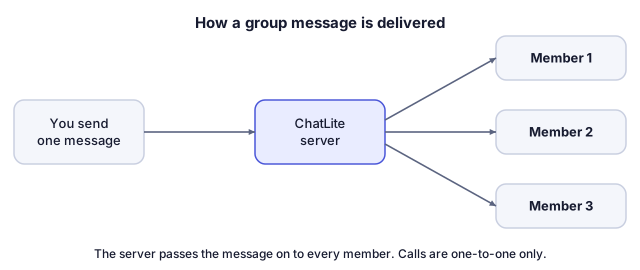
The idea in a diagram
How to tell it worked
- After creating: Group chat created! and the new group at the top of your list.
- After inviting: Invitation sent, and the new member appears under View Members once their device has received the invitation.
- After sending a message: the other members see it in their list. In a group, the small number next to your message is how many members have not read it yet. When everyone has read it, the number is replaced by the word Read.
If something goes wrong
Enter group name
The name field was empty. Type a name of up to 30 characters.
Select at least 1 member
Tick at least one friend in Select Members. If the list is empty, add a friend first.
Failed to create group
Check your connection and try Create again.
Already a member
The person you tried to invite is already in the group.
Cannot invite yourself
The ID in the field is your own.
You can only invite in group rooms
You opened Invite Members in a one-to-one chat. Create a group instead.
There are no existing friends available to invite.
Everyone in your friend list is already in this group. Use Invite someone else directly with a user ID or invite link.
The call buttons show Calls only available in 1:1 chats.
Calls are only available between two people. See the limits below.
What ChatLite does not do
- Calls and screen sharing work in one-to-one chats only. A group is for messages.
- ChatLite has no control for removing another member from a group. Members can only leave on their own.
- Anyone in a group can invite more people, and an invite link or user ID identifies a browser profile, not a verified person. Add only people you trust.
- Leaving removes the group from your browser only. Messages the others already received stay on their devices.
- A person who is offline when you invite them or send a message receives it later, within the delivery limits described in the guide on starting a conversation.
Privacy and data
Group messages are sent to ChatLite's server once, and the server passes them on to the other members. This differs from a one-to-one chat, which prefers a direct browser-to-browser connection. ChatLite does not currently provide application-level end-to-end encryption, so treat a group as a conversation that passes through the server. The group and its messages are stored in each member's own browser.
Reviewed against ChatLite's current behavior on .